
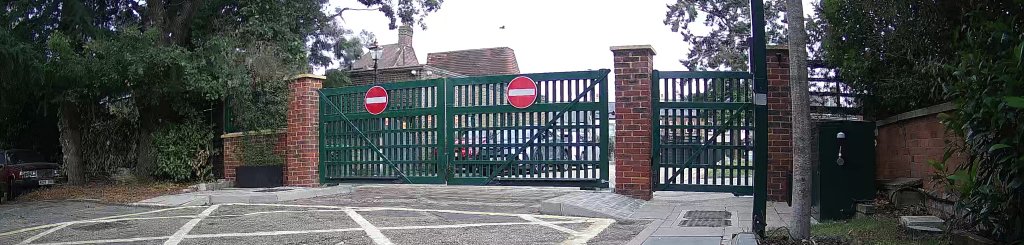
Residents and their authorised visitors can access the pedestrian gates in one of three ways:
✅ Access Fob
✅ Registered Mobile Phone (Intratone App)
✅ Gatehouse Intercom – Remote Opening
Access Fobs
Residents can purchase access fobs for £20 each.
How Fobs Work
- Fobs are contactless and operate by holding them near the reader located on the gate post.
- Each fob is uniquely assigned to a specific property.
- Fobs are valid only for use on the Farnborough Park pedestrian gates, providing enhanced access control.
Mobile Phone Access
Residents can open the pedestrian gates using the My Intratone App on a registered mobile phone.
Once registered and activated, the app allows you to open authorised gates directly from your smartphone.
Before You Start
- Your mobile number must be registered before access can be granted.
- You will need an active data connection on your phone
- Please allow up to 24 hours for new registrations to be processed.
- Access will only be activated once your application has been approved and configured.
Key Advantages of My Intratone App
The System provides several improvements
- Support for users whose mobile contracts cannot dial international numbers.
- Support for phones registered with overseas mobile numbers.
- Faster recovery from equipment failures through centralised system management.
- More reliable access control for authorised users.
IF YOUR PHONE WAS ABLE TO DIAL TO OPEN THE GATES YOU DO NOT NEED TO REGISTER
Terms and Conditions
Use of pedestrian gate access fobs and mobile access services is subject to the Farnborough Park Terms and Conditions.
- All applications will be subject to verification and approval.
- Access rights may be amended, suspended, or withdrawn where necessary for security or operational reasons.
- Farnborough Park reserves the right to refuse or revoke access without prior notice where appropriate.
My Intratone – Getting Started
Downloading the App
- Open the Apple App Store or Google Play Store.
- Search for “My Intratone” not “Intratone Plus”
- Download and install the application.
- Launch the application.
- Select Continue.
Registering Your Mobile Number
- Select the correct country for your mobile provider.
- Enter the mobile number registered with Farnborough Park Estate.
- Request a verification code.
- Enter the four-digit SMS code received on your phone.
- Confirm registration.
Permissions
The application may request permission to use your device microphone.
- Select Next.
- Allow microphone access if prompted.
The application does not provide video calling functionality for gate access. Proceed through any related prompts and complete the setup process.
Adding Gate Access
View Available Doors
After registration:
- Select View Doors.
- Choose Receive the Code.
- Enter the SMS verification code sent to your registered phone.
Once verification is complete, the available gates will appear in your door list.
Using the App
Opening Gates
- Open the My Intratone app.
- Navigate to your available doors list.
- Select the gate you wish to access.
- Activate the gate opening command.
Favourites
You may designate up to two gates as favourites.
To do this:
- Locate the desired gate in your doors list.
- Select the star icon next to the gate.
- The gate will appear on the shortcuts screen for quicker access.
Important Information
Do Not USE Add Another Device
Registering a new device will remove your access rights from the currently authorised device.